
Using the console
The console is served by Shipyard itself at the address in listen — http://127.0.0.1:8080 by default.
Connect
The pill in the top bar shows your access:
| Indicator | Meaning |
|---|---|
| Read-only | No token entered. You can browse, but not queue, cancel or retry. |
| Connected | Token accepted. All actions are available. |
| Token required | The server protects reads too. Enter the token to see anything. |
| Server unreachable | Shipyard is not answering. |
Click the pill and paste the value of the variable named by runtime.api_token_env. The token stays in the tab's memory only; reloading the page forgets it.
Runs
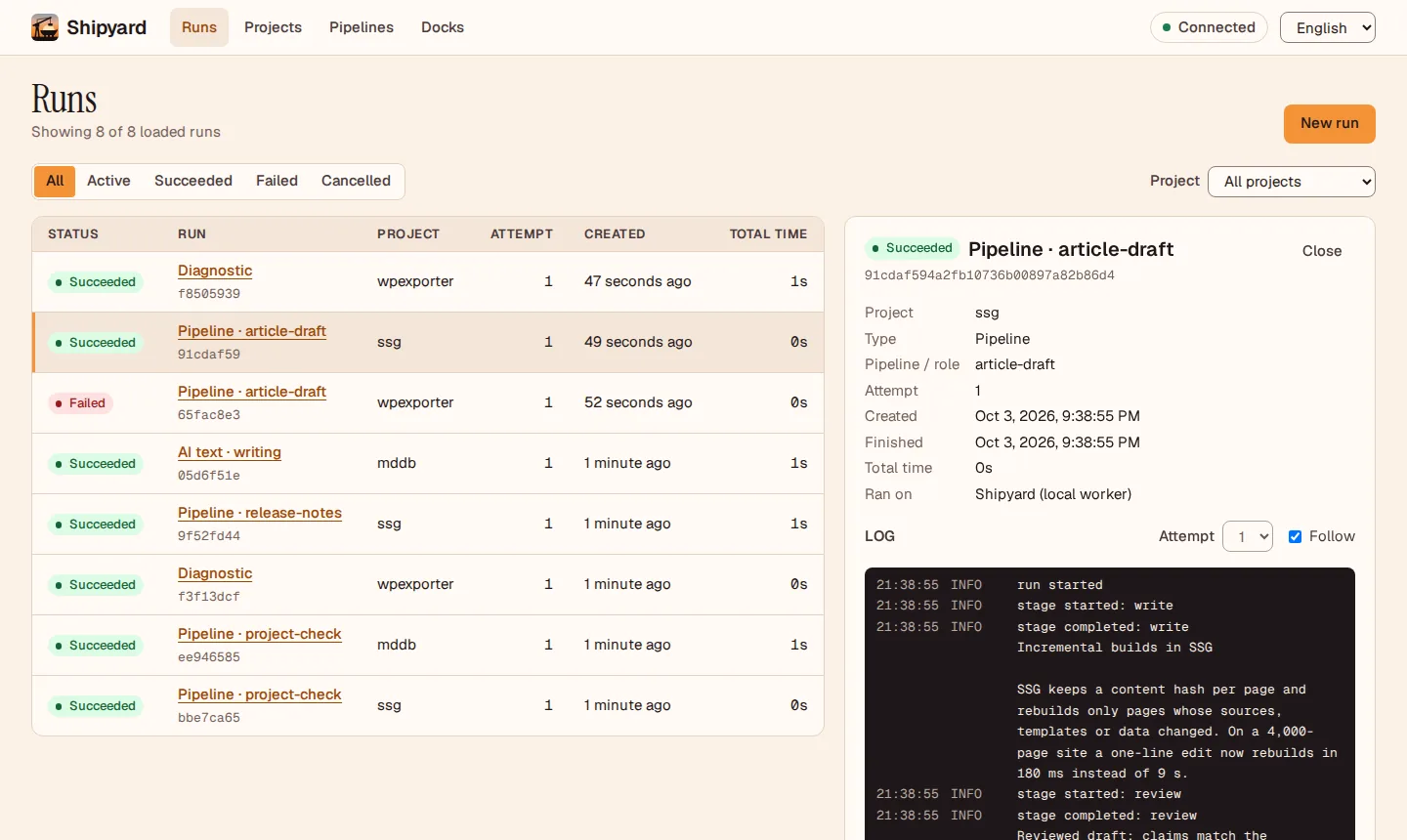
The Runs view lists the latest runs, newest first, and refreshes every five seconds.
- Filter by status — All, Active, Succeeded, Failed, Cancelled — or by project.
- Load older runs pages back through history.
- Click a run to open its panel: project, type, attempts, timings, the error if it failed, and the log.
- Waiting runs hit a usage limit; the row shows when they resume, and a yellow notice above the list names the limited models and their reset times. Waiting runs can be cancelled.
Queue a run
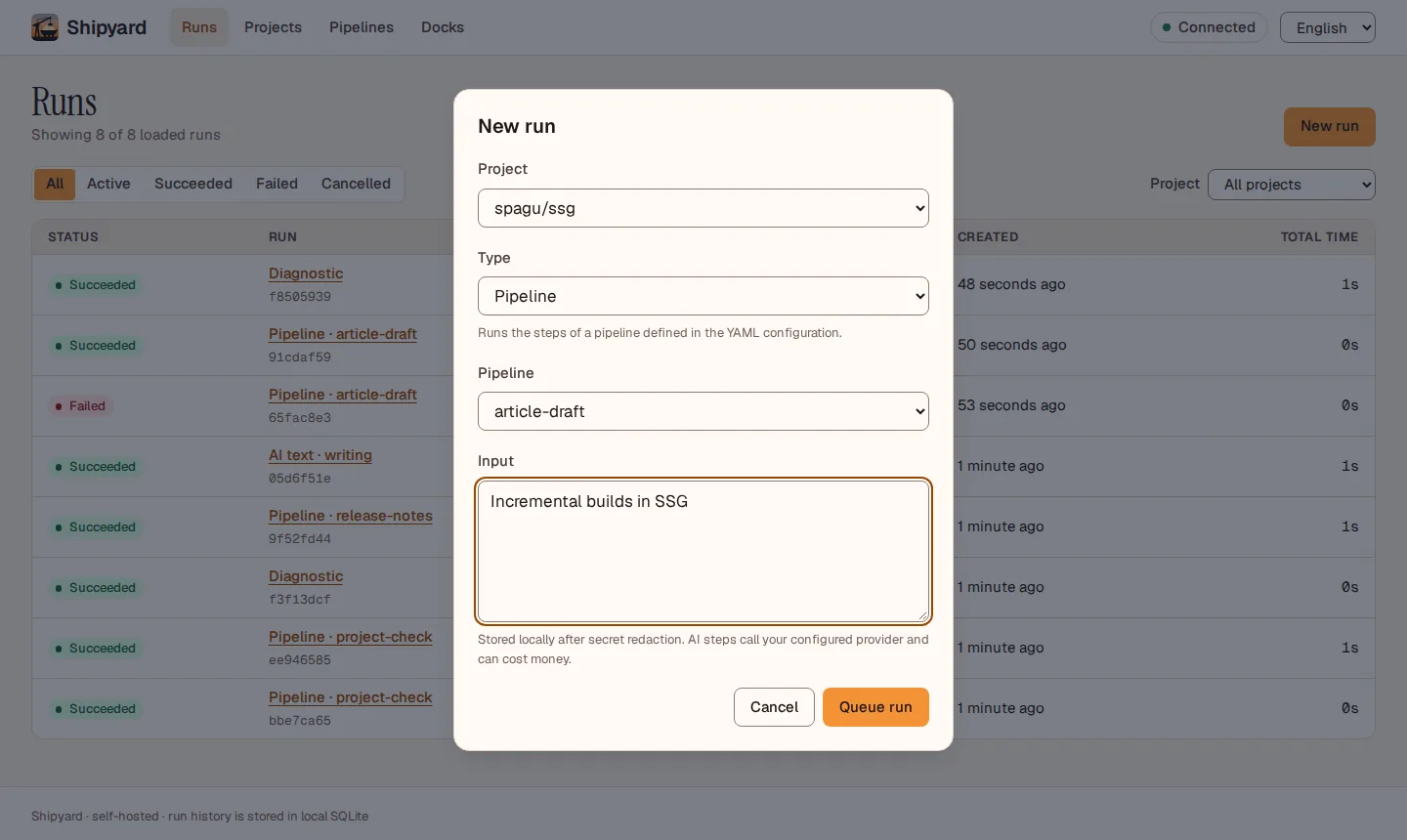
New run opens a form. Pick a project and a type:
| Type | What it does | Needs |
|---|---|---|
| Diagnostic | Checks that the project is configured and enabled. | Nothing else |
| Pipeline | Runs a pipeline from your configuration. | A pipeline name; optional input |
| AI text | Sends one prompt to the model routed for the role you pick. | A role and a prompt |
AI runs call your provider and can cost money.
Follow the log
The log tails live while the run is active; untick Follow to scroll freely. Runs that were retried after a crash have several attempts — switch between them with Attempt. Download saves the shown attempt's whole log as a .jsonl file.
Cancel and retry
- Cancel run stops a queued run at once and asks a running one to stop at the next safe point.
- Retry as new run queues a failed or cancelled run again with the same input. The original stays in the history.
- Both buttons are disabled while their request is in flight, so a double click sends one request.
The panel also lists the run's history (queued, started, recovered, finished) and Tokens and cost: input, output, cache-read and cache-write tokens and the estimated cost, per pipeline step with the ship (or this Shipyard) that ran it, and for the whole run. When a provider reported no counts or a model has no prices, the cost reads Unknown, never a made-up zero.
Projects
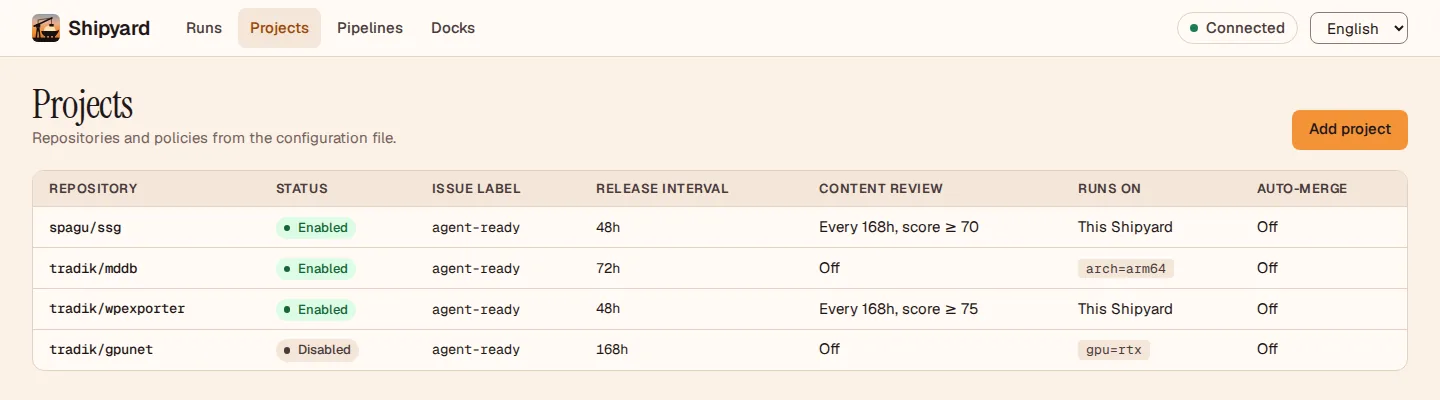
Projects lists the repositories in your configuration with their issue label, release interval, content review and where they run — this Shipyard or ships with matching labels.
Usage, below the projects, shows where a project's tokens went in the last 24 hours, 7 days or 30 days: tokens and cost by source (provider calls, agent steps, workstation sessions), by model and by category, with each one's share; the runs and workstation sessions that used the most, with their average and peak context; the usage findings with their evidence (value against threshold, tokens, and the session, directory or tool they name); and the instruction files of the project's repositories with the estimated fixed cost a session pays before its first request. A workstation session's cost is an estimate from the prices in ai.models (marked estimate); it reads Unknown when the session used models with different prices or one without a price.
Add project opens a form: ID, repository, issue label, release interval, optional ship labels and content review. Shipyard validates it, appends it to the configuration file — comments and layout are kept — and starts accepting runs for it immediately, no restart needed. When the configuration is loaded from a URL the view is read-only.
Pipelines
Pipelines shows every pipeline step by step; Run pipeline opens the form with that pipeline selected. Pipelines are defined in the configuration file.
Docks
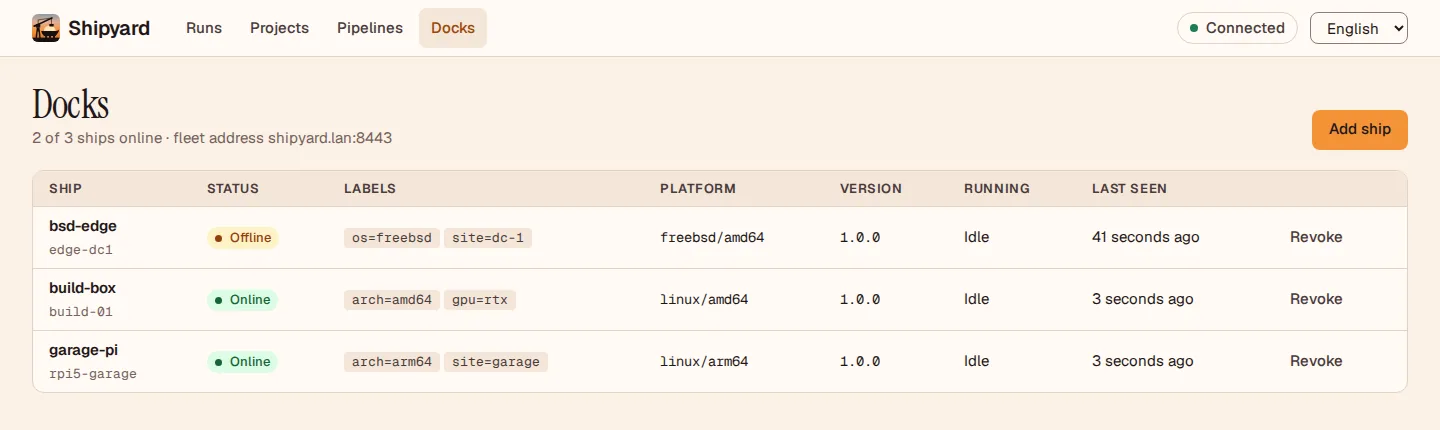
Docks lists the ships joined to this Shipyard — online, offline or revoked — with their labels, platform, version and the run they are executing. Add ship creates a join command, for one ship or, with Ships above 1, for several; Revoke cuts a ship off; Pause tasks stops new infrastructure tasks for a ship while letting queued and running ones finish, and Resume tasks lifts it. Usage lists the runs the ship executed in a period, newest first, with tokens and cost per run and the period's total. History shows the ship's journal, newest first: connections, pauses, task transitions with who made them; Show older pages back. An event of a traced request has a trace button with the start of its trace ID (the full ID on hover, the one your trace backend knows it by); it narrows the list to that trace, and Show all events brings the rest back. Opening it only reads history and never re-runs a task. Under each ship's name the row lists the services the ship lets Shipyard restart and the Docker containers it reports. When infra.mutations.enabled is on and you are signed in, each service has Request restart; the request waits for approval in the Bosun app, and the console cannot approve it. The run panel shows where each run ran. See Ships and docks.
Below the ships, Phones lists the phones paired with the Bosun app. Pair phone shows a one-time QR code; Revoke cuts a phone off.
Sessions lists the AI clients and tokens using the infrastructure API right now: who, since when, the last request and how many tasks the session created. End stops the session and revokes its token; the client needs a new token to continue. The section is empty unless infra.enabled is set. A phone's session shows the phone's name.
SSH sessions lists the brokered SSH sessions to ships, newest first: who asked, ship and account, state, and when and why each ended. AI sessions carry an AI badge with their client, provider and model. End ends a session and cuts its connection at once. Replay plays a recorded session as plain text, with pause, restart, Show all and speeds up to 8×; long pauses are shortened to two seconds. The section is empty unless infra.ssh.enabled is set.
Identities lists the users, AI clients and phones that may use the infrastructure API, with kind, role, scopes and state. Revoke stops all tokens of one identity at once.
With auth.oidc configured, Sign in takes you to your identity provider. A signed-in admin or owner gets Add identity and, on each row, Manage: grant scopes on hosts or host groups, issue a token, link a person's sign-in, or create a client secret for a service. Tokens and secrets are shown once. Only an owner can add or change admins and owners. Before the first sign-in, create an owner and link it on the Shipyard host: shipyard principal add -kind user -role owner -name you, then shipyard principal link -id ID -subject YOUR_OIDC_SUBJECT. The subject is shown if you try to sign in before it is linked.
Knowledge bases lists the external knowledge bases AI agents may search (infra.knowledge): search mode, allowlisted collections and whether each one answers now; hover an Unreachable badge for the HTTP status.
Repositories
Repositories has one entry per connected provider under its title; the row shows only what the configuration connects. Shipyard connects GitHub today (github_app). The address names the provider (#/repositories/github), and bookmarks of the former GitHub tab (#/github) open the same list with their filters. With no provider connected the view says which setting to add.
GitHub lists the repositories the GitHub App can reach, with the projects that use them, open issues and pull requests, workflows whose newest run failed and open security alerts. A dash instead of a number means Shipyard does not know: the App lacks the permission, the feature is not enabled for that repository, or no sync has run yet; hover it for the reason. Stale marks a repository not synced for two reconciliation intervals, Failed one Shipyard could not read (hover for the reason).
Below, Activity lists issues, pull requests, CI runs and alerts, newest first, each linking to GitHub. Filter by kind, project, state and severity; the filters stay in the address, so a filtered view can be bookmarked or shared. Load more fetches the next page.
Drafts
Drafts lists the articles Shipyard wrote from accepted topics, last changed first; filter by project and state. Proposed drafts wait on a draft pull request: open it from the row, read the article, then Approve or Reject. The confirmation repeats the draft's hash, and the decision applies to that hash only: if someone pushed to the branch since, Shipyard refuses it and the list is read again. An approved draft is merged once its checks pass. The Decision column says who decided and when: your name when you are signed in to the console, operator otherwise. Approving and rejecting need the API token.
Analytics
Analytics shows how a project's published articles did, for projects with analytics set. Choose the project and the dates; with no dates it shows the 90 days up to yesterday. Sources lists each source with the days it answered. Published articles lists each article with its window and the counts its sources report: Unknown means a source did not answer for every day of the window, with the days it did; 0 means it answered and counted nothing. Below a count is the median of the earlier articles once three of them were measured in full. CTR needs both clicks and impressions. Repository stars shows the count on the first and last day; stars are never attributed to an article.
Language
The console is in English. Choose Polski in the top bar to switch; the choice is remembered in this browser. Add ?lang=pl to a link to open it in Polish.